Overview
Managers and users with the Master User role can query, filter, visualise, and export attribute (non-graphical) data in either PDF or CSV format.
NOTE: This article uses room attribute data as an example; however, the process is the same for all attribute data types, including sites, buildings, and services.
TABLE OF CONTENTS
Instructions on how to query, visualise, filter, and export data
Step 1: Query Data
- Log in to AssetWhere using your organisation's URL.
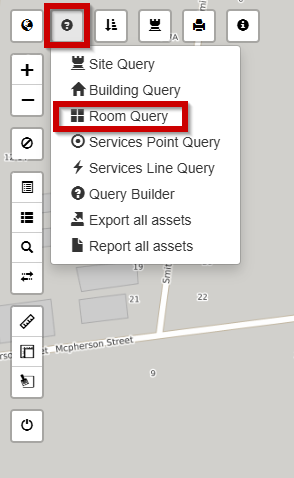
- Select the Query button located in the top-left corner of AssetWhere, then select Room Query.
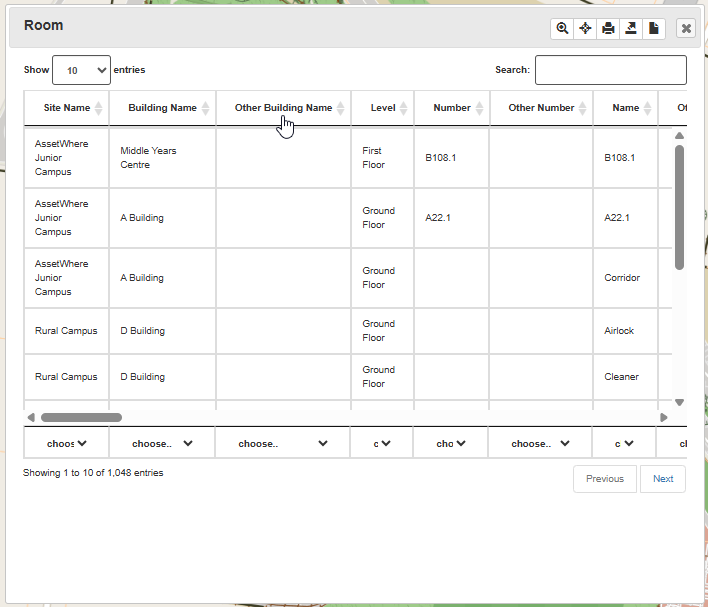
- A table displaying all room data will appear within AssetWhere.
Step 2: Navigate the Query window
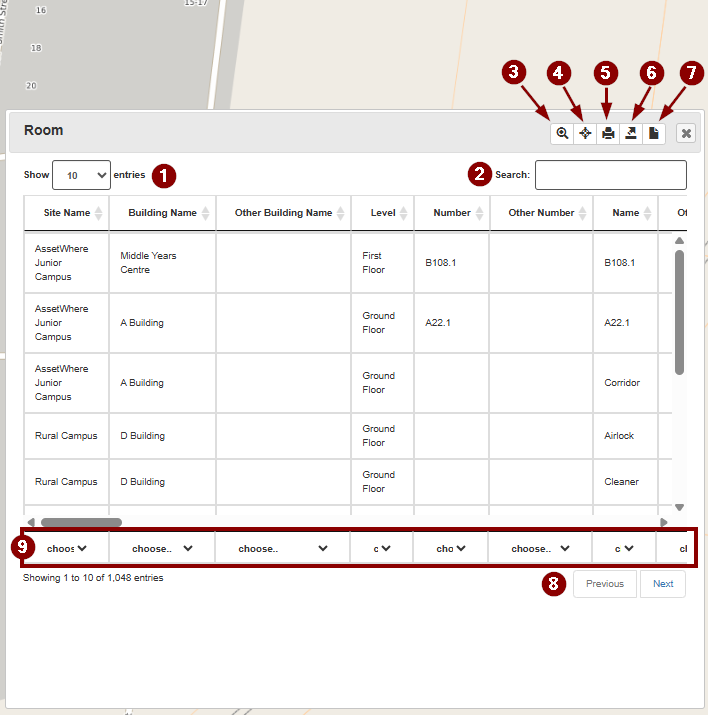
- Change the number of records displayed per page.
- Search for records by room name, building name, room number, or other attributes.
- Select a record and click the magnifying glass button to zoom to the selected feature on the map.
- Click this button to zoom to all displayed data.
- Click this button to print the map.
- Click this button to export the table to CSV format with all filters applied. The exported file can be opened in Microsoft Excel.
- Click this button to export the table to PDF format with all filters applied.
- If there are too many records to display on a single page, click Next to view additional records.
- Filter data by column values using the drop-down menu for each column.
Example
Steps:
- Log in to AssetWhere.
- Select Query, then Room Query.
- A table displaying the first 10 records appears above the AssetWhere map.
- Locate the Level column and select First Floor from the drop-down menu. This will filter the results to display only rooms located on the first floor.
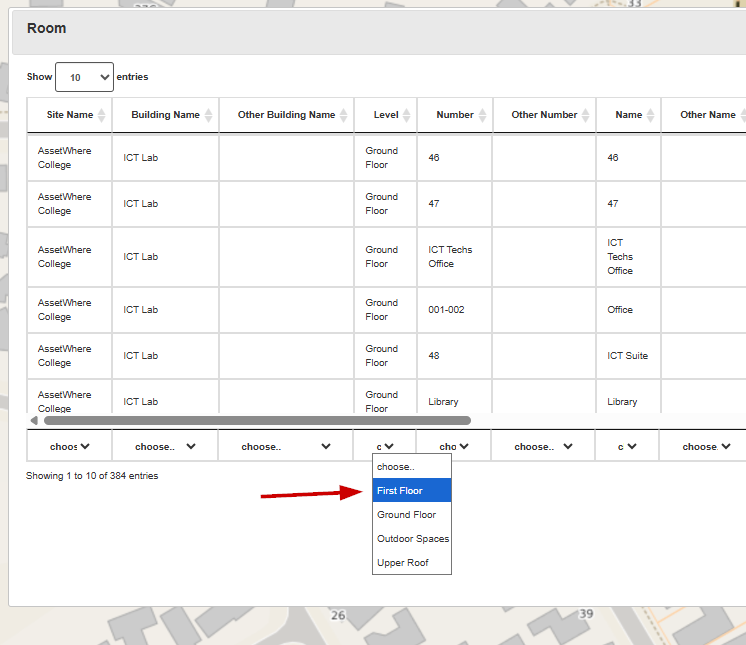
- Click the Export button (number 6 in the screenshot above) to download a CSV file containing all first-floor rooms.
Need Help?
If you are still unable to see the updated assets after completing the steps above, please email us at assetwheresupport@tes.com . Our team will be happy to assist you.
There's style guidance and resources available to help you write quality help articles for our customers.
Our Global content guides are currently housed on Confluence and a public link will be available soon. In the meantime, feel free to request access via the links below or contact us on EH-UX-Content@tes.com and we'll help resolve the issue.
On Confluence (in the UX space)
- Content design standards and processes: About what we do, how and why.
- Tes' product content style guide: Contains guidance on language, grammar, style, accessibility, formatting and product word lists.
- Tes vocabulary and product word lists
- How to write knowledge base support content
Was this article helpful?
That’s Great!
Thank you for your feedback
Sorry! We couldn't be helpful
Thank you for your feedback
Feedback sent
We appreciate your effort and will try to fix the article